

If you manage more than one bank account, a credit card (or three), and maybe a loan or brokerage account, you already know the pain: your balances “look about right,” until they are not. That is where a money manager app for PC earns its keep. Desktop workflows make it easier to sync accounts, review transactions quickly, and reconcile balances so your budget and reports are based on reality, not guesses.
This guide breaks down what “sync” and “reconcile” actually mean in personal finance apps, what to look for in a PC-friendly money manager, and a fast monthly reconciliation workflow you can repeat in under 20 minutes once your system is set.
Syncing vs reconciling (and why you need both)
Most people use these terms interchangeably, but they solve different problems.
Syncing accounts means connecting your financial institutions so transactions and balances import automatically. Done well, syncing reduces manual entry and keeps your dashboard current across checking, savings, credit cards, loans, and investments.
Reconciling means verifying that what your app thinks happened matches what your bank or card issuer says actually posted. Reconciliation is what turns your tracker into a reliable system, because it catches:
- Duplicates (common after connection hiccups)
- Mis-categorized transactions that wreck your budget
- Missing transactions (especially around statement close)
- Transfers that got counted as “spending” twice
- Unexpected charges you want to dispute
If syncing is the data feed, reconciliation is quality control.
What a PC money manager should do well
A PC-first workflow is about speed and visibility: bigger screen, faster navigation, and the ability to compare multiple accounts or reports side-by-side.
When evaluating any money manager app for PC, prioritize these capabilities.
1) Reliable account connectivity
Account linking is table stakes, but reliability varies widely across apps and institutions. Look for:
- Coverage for the banks and cards you actually use (ideally thousands of institutions)
- Clear connection status so you can see when an account last updated
- Support for multi-factor authentication and modern sign-in flows
- A way to handle disconnected accounts without losing history
2) Transactions you can review fast
Reconciliation is mostly transaction review. PC users benefit when the app makes it easy to:
- Search and filter (by amount, merchant, category, date)
- Spot duplicates and “same-day” repeats
- Handle refunds, reversals, and partial credits cleanly
- Separate pending vs posted activity (important near statement dates)
3) Real reconciliation features (not just budgeting)
A budgeting interface is not the same as reconciliation. If accuracy matters, look for explicit support for:
- Account reconciliation (marking transactions cleared, verifying statement totals, or confirming ending balance)
- Reconciliation history so you can see what was verified and when
- Reports that reflect reconciled reality, not just imported guesses
4) Alerts that prevent small issues from becoming big ones
Alerts are a practical companion to reconciliation. The best systems catch problems mid-month so reconciliation is easy at month-end.
Examples include reminders for upcoming bills, unusually large transactions, or low-balance warnings.
A fast monthly reconciliation workflow (PC-friendly)
You do not need a complex accounting process. What you need is consistency.
Here is a repeatable workflow that keeps your numbers trustworthy without turning personal finance into a second job.
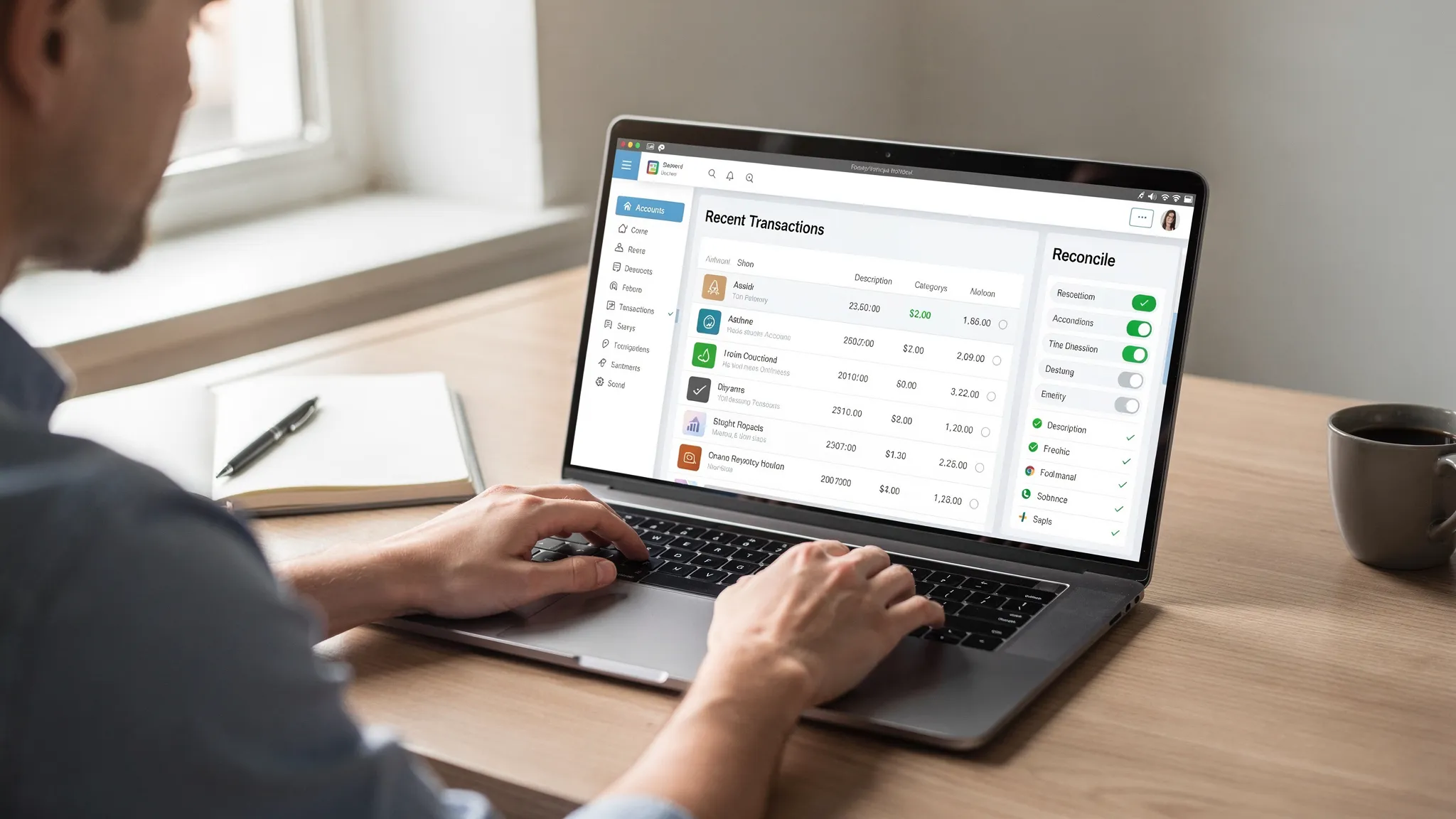
The 15 to 20 minute reconciliation routine
Do this once per month for each primary account (checking, main credit cards). For heavily used accounts, you can also do a quick mid-month pass.
- Sync all accounts and confirm each account shows a recent “last updated” status.
- Pick one account (start with checking, then credit cards).
- Open your bank statement (or issuer statement period) in another tab/window.
- Compare the ending balance in the statement to the app’s balance (or the app’s reconciliation target).
- Review transactions for the statement period, focusing on anything unmatched, duplicated, or uncategorized.
- Mark cleared/verified items (depending on how your app handles reconciliation).
- Resolve differences (duplicates, missing items, pending vs posted).
- Lock in the reconciliation for that statement period, then move to the next account.
What to check at each step (with speed tips)
| Reconciliation step | What you are verifying | Fast PC workflow tip |
|---|---|---|
| Sync accounts | Data is current | If one account fails, fix it now before reviewing anything else |
| Statement period | You are comparing the right dates | Use the statement start/end dates, not the calendar month |
| Ending balance | Your tracker matches the issuer | If balances differ, look for pending charges or missing transfers |
| Transaction list | No duplicates or gaps | Filter by “uncategorized” and by large amounts to find issues first |
| Transfers | Not counted as spending twice | Search for the same amount on the same date in two accounts |
| Final reconcile | Your reports are now trustworthy | Reconcile checking first, it affects everything else |
The reconciliation issues that trip people up (and how to fix them)
Most reconciliation problems fall into a few predictable categories. If you know the patterns, you can correct them quickly.
Pending vs posted transactions
Many institutions show pending card charges immediately, but they post later (sometimes with a different final amount, for tips or fuel). If your app imports pending transactions, you may see temporary mismatches.
What to do: reconcile to the posted statement, not a mid-cycle “current activity” view.
Duplicate imports after a reconnect
If an account connection drops and is re-established, some apps re-import recent history, creating duplicates.
What to do: sort by date, then look for same merchant and amount pairs. Delete or exclude duplicates so your spending totals are not inflated.
Transfers that look like spending
A transfer from checking to a credit card can be misread as an expense, and the credit card payment can be counted again as “income” on the card side.
What to do: ensure transfers are treated as movement between accounts, not an expense category.
Refunds and reversals
Refunds can post days later and may not match the original description.
What to do: search by amount (negative or positive) and confirm the net effect across the month is correct.
Cash withdrawals and cash spending
ATM withdrawals are easy to import, but what you do with cash after that is invisible unless you track it.
What to do: decide on a rule, either treat ATM withdrawals as spending in a “Cash” category, or track cash spending manually. The important part is consistency.
How to make reconciliation even faster over time
Reconciliation gets dramatically quicker once you stop fighting the same fires each month.
Use categories the way a finance pro would
Overly detailed categories slow you down. Too few categories reduce insight. A good middle ground for most households is 15 to 25 categories with consistent rules.
If you want granularity, do it where it matters (for example Dining Out vs Groceries), not everywhere.
Reconcile on a schedule that matches statement cycles
Many people reconcile “end of month,” but statements often close on different dates. Reconciling by statement period reduces confusion, especially for credit cards.
Let alerts do the early warning
If your app supports customizable alerts and reminders, use them to catch problems early:
- Unexpected large transactions
- Bills due soon
n- Low balance thresholds
The goal is fewer surprises when you sit down to reconcile.
(For identity and account safety best practices in general, the FTC’s guidance on recognizing and responding to fraud is a solid reference: FTC identity theft resources.)
Using MoneyPatrol as a money manager app for PC
MoneyPatrol positions itself as a free, all-in-one personal finance and budgeting app with a unified dashboard. If your priority is syncing accounts and reconciling fast, focus on the features that directly support accuracy and review speed:
- Connectivity to thousands of financial institutions to reduce manual entry
- Account reconciliation to verify balances and transaction completeness
- Alerts and reminders to surface issues before they compound
- Detailed financial reports so your insights reflect reconciled data
A practical setup flow looks like this:
- Create your account and open your personal finance dashboard.
- Connect key institutions first (primary checking, main credit card, savings), then add the rest.
- Review imported transactions, then correct categories for the handful that drive most of your budget (housing, groceries, transportation, utilities).
- Configure alerts and reminders for bills and balance thresholds.
- Run your first reconciliation for checking, then your primary credit card.
- After one full statement cycle, review your reports and adjust categories or alerts based on what you learned.
You can learn more or start directly at MoneyPatrol.
A simple “done is better than perfect” standard
Reconciliation is not about making your finances look pretty. It is about making them accurate enough to trust.
If you only do two things consistently, you will outperform most people:
- Sync accounts regularly so your data stays current.
- Reconcile each statement cycle so your balances and spending reports stay true.
Once that habit is in place, budgeting, bill tracking, debt payoff planning, and goal setting stop feeling uncertain, because you are making decisions from clean numbers, not approximations.
If you want a free platform designed to bring accounts, alerts, reports, and reconciliation into one place, explore MoneyPatrol’s approach here: Start tracking with MoneyPatrol.


 Our users have reported an average of $5K+ positive impact on their personal finances
