

Auto-categorization is the difference between an expenses application you actually stick with and one that becomes a messy “I’ll fix it later” project. When your transactions land in the right buckets automatically, your budget stays accurate, your reports become meaningful, and you spend minutes per week (not hours per month) cleaning things up.
This guide shows how to set up rules to auto-categorize transactions, what to watch out for (so you do not misclassify spending), and a set of proven rule templates you can copy.
What “auto-categorize rules” really do
Most expenses applications categorize transactions using signals like the merchant name, transaction description text, and sometimes merchant type codes. A rule is your way of telling the app: “When you see this pattern, always file it here.”
Common rule triggers include:
- Merchant name contains a word or phrase (for example, “STARBUCKS”)
- Description contains a keyword (for example, “PAYPAL” or “SQ *”)
- Account used (credit card vs checking)
- Amount equals or falls within a range (use carefully)
- A transaction is recurring (subscriptions, rent)
Rules are especially helpful because merchant names are not always clean. For example, a grocery store might appear as:
- “SAFEWAY #1234”
- “SAFEWAY.COM”
- “SQ *SAFEWAY MARKET”
A good rule catches variations without catching unrelated transactions.
Step 1: Fix your category system before writing rules
Rules only work as well as the category structure behind them. Before you automate anything, spend a few minutes deciding what “good categorization” means for you.
Choose categories you will actually use
If your categories are too granular, rules become fragile and you will constantly second-guess where things belong. If your categories are too broad, your reports will not help you change behavior.
A practical middle ground for many households is:
- Housing
- Utilities
- Groceries
- Dining
- Transportation
- Shopping
- Health
- Insurance
- Subscriptions
- Travel
- Income
- Transfers (internal)
- Savings and investments
If you are using an all-in-one personal finance app like MoneyPatrol, keep categories aligned to the reports you plan to review each month, because the goal is not perfect bookkeeping, it is clarity.
Decide how you will treat “special” spend
Pick a consistent approach for:
- Reimbursements (work expenses, friend paybacks)
- Transfers between your own accounts
- Credit card payments
- Refunds and chargebacks
These often cause the biggest reporting confusion.
Step 2: Audit your last 30 to 90 days of transactions
Rules should be based on your real spending patterns, not guesses.
Do a quick audit and identify:
- The top 10 to 20 merchants by frequency (coffee, gas, grocery, delivery)
- The top 5 to 10 merchants by total spend (big box stores, utilities, rent)
- Anything that repeatedly lands in “Uncategorized”
If you only have time for one pass, prioritize merchants that appear weekly or monthly. Automating those gives the biggest payoff.
Step 3: Start with high-confidence rules (the 80/20)
A strong rule has two traits:
- It is specific enough to avoid accidental matches
- It is broad enough to catch variations of the same merchant
Here are examples of high-confidence rules that usually work well:
- Utilities providers (electric, water, internet) that always bill under the same name
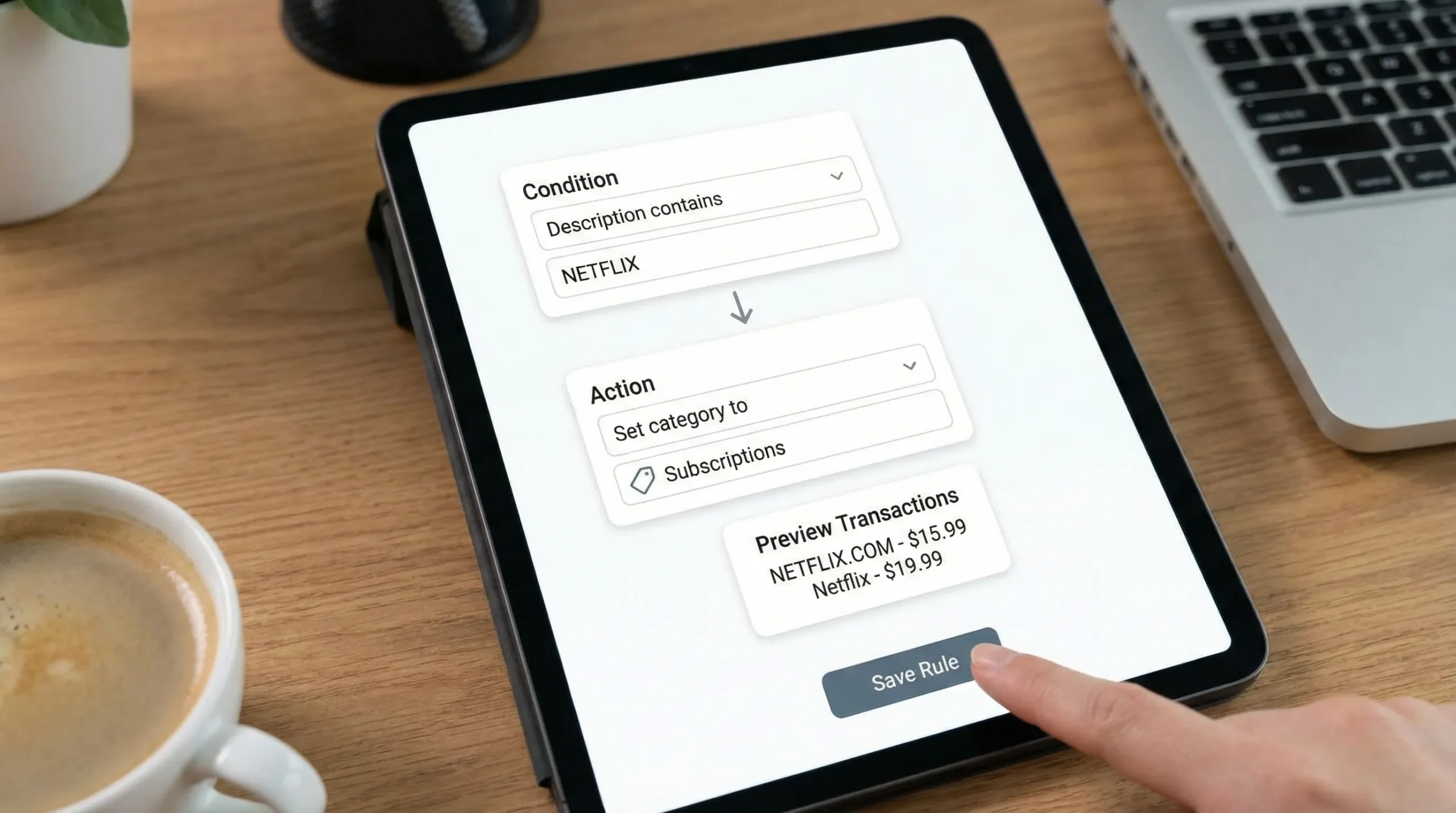
- Known subscription descriptors (“NETFLIX.COM”, “SPOTIFY”, “ADOBE”)
- Major grocery stores you use regularly
- Gas stations you frequent
Rule naming and documentation matters
Even if your app does not require names, add them when possible. A simple naming format prevents confusion later:
- “Groceries: Safeway variants”
- “Subscriptions: Netflix”
- “Transfers: Ignore Zelle between my accounts”
If your expenses application supports rule notes, record any edge cases (for example, “Costco may include gas, review big transactions”).
Step 4: Use rule priority (and avoid rule collisions)
If your app supports rule ordering or priority, put the most specific rules above broader ones.
Example:
- Specific: “Description contains COSTCO GAS” → Transportation
- Broad: “Description contains COSTCO” → Groceries or Shopping
Without priority, broad rules can incorrectly swallow the specialized cases.
Rule templates you can copy (with examples)
Use the table below as a starting point. The key is to match the pattern your bank actually shows in transaction descriptions.
| Rule trigger (example) | Category to set | Notes to avoid mistakes |
|---|---|---|
| Description contains “SAFEWAY” | Groceries | Add a second rule for “SAFEWAY.COM” if online orders should be separate. |
| Description contains “KROGER” | Groceries | Include variants like “RALPHS”, “FRY’S”, depending on region. |
| Description contains “SHELL” | Transportation | Gas stations often share names with convenience stores, review outliers. |
| Description contains “UBER TRIP” | Transportation | Separate from “UBER EATS” if you want ride vs food reporting. |
| Description contains “UBER EATS” or “DOORDASH” | Dining | Helps quickly see delivery spending. |
| Description contains “NETFLIX” or “SPOTIFY” | Subscriptions | Subscription descriptors are usually stable, low risk rules. |
| Description contains “AT&T” or “VERIZON” | Utilities | Carrier stores can also appear, review occasional device purchases. |
| Description contains “PAYROLL” or employer name | Income | If employer varies, use a rule on the deposit descriptor instead. |
| Description contains “VENMO CASHOUT” | Transfers | Decide if Venmo cashouts are income, transfer, or reimbursement. |
| Description contains “ZELLE” and matches known contact | Transfers or Reimbursements | Better when combined with a keyword like a name or memo text. |
Step 5: Handle the tricky categories (where most rules break)
Big box stores (Costco, Walmart, Target)
These merchants sell groceries, household goods, pharmacy items, electronics, and more. A single rule often distorts your budget.
Options that work better:
- Categorize big box purchases as “Shopping” and track groceries separately at true grocery stores
- Only auto-categorize small, frequent transactions, then manually review large ones
- Use amount-based rules sparingly (for example, “under $30 at Target” as household essentials), but re-check monthly
Online payment processors (PayPal, Square, Apple Pay)
“PAYPAL *MERCHANTNAME” is common, but “PAYPAL” alone is too broad.
Better patterns:
- “PAYPAL *UBER” → Transportation
- “SQ *JOE’S COFFEE” → Dining
If your app supports it, match the full merchant string after the processor.
Transfers and credit card payments
These are the transactions that create “double counting” if categorized as spending.
A simple principle:
- Categorize purchases as spending
- Categorize movements of money between your own accounts as Transfers
This keeps spending reports accurate.
Refunds and returns
Decide whether refunds should:
- Go back into the original category (common, keeps net spend accurate)
- Go into a “Refunds” category (useful if you return items frequently and want visibility)
If your expenses application supports rules for negative amounts, you can sometimes route refunds automatically, but review those rules carefully.
Step 6: Build a review routine so automation stays accurate
Even excellent rules need maintenance because merchant descriptors change, subscriptions rebrand, and you try new services.
A realistic routine:
- Weekly: review anything “Uncategorized” and any large transactions
- Monthly: scan category totals and investigate spikes
- Quarterly: prune old rules (for one-time merchants) and tighten any rule that created misclassifications
If your app offers alerts or reminders, set one recurring reminder to do the monthly scan. (MoneyPatrol includes customizable alerts and reminders, which can help make this review habit stick.)
For general budgeting best practices and maintaining good financial records, the U.S. Consumer Financial Protection Bureau (CFPB) has guidance on tracking spending and building a budget: Budgeting resources from the CFPB.
A practical example: rules for a “housing goal” fund
Many people start tracking more seriously when planning for a major goal like a home purchase. Auto-categorization rules help you separate:
- Savings contributions for the goal
- Research and shopping costs (applications, inspections, travel)
- Current housing expenses (rent, utilities)
If you are comparing housing options, including manufactured homes, consider creating a dedicated category like “Home Purchase Planning” so those costs do not blur your normal monthly spending. For example, when researching models and financing options in Texas, you might reference a local resource such as Homes2Go San Antonio manufactured homes and track any related fees, deposits, or travel expenses under that goal category.
Common mistakes to avoid when setting up rules
Making rules too broad
“Contains AMZN” will categorize almost everything Amazon-related the same way, even though you might buy groceries, household supplies, gifts, and subscriptions there.
When in doubt, start narrow, then expand once you confirm what the transactions look like.
Automating categories you do not agree on
If you argue with your own category labels, you will stop trusting the reports.
Pick definitions you can follow consistently. Consistency beats perfection.
Forgetting to handle cash withdrawals
If you withdraw cash, create a plan:
- Categorize ATM withdrawals as “Cash withdrawal” (neutral)
- Optionally track cash spending manually as you spend it
If you categorize withdrawals as “Dining” or “Shopping” immediately, your reports will be guesswork.
How to choose an expenses application that supports better categorization
If you are evaluating tools, look for:
- Strong transaction search and filtering (to find patterns quickly)
- Flexible categories and the ability to edit them over time
- Reconciliation or review workflows to confirm accuracy
- Clear reports that reflect your categories
- Alerts for unusual activity and reminders for bills
MoneyPatrol is designed as a free, comprehensive personal finance dashboard for tracking expenses, budgeting, bills and debt, income, investments, and credit score, with insights and alerts in one place. If your current tool makes categorization feel like constant cleanup, switching to a more complete dashboard can reduce friction.
Frequently Asked Questions
How many categorization rules should I create in an expenses application? Start with 10 to 25 rules covering your most frequent merchants and recurring bills. Expand slowly, and remove rules that only applied to one-time purchases.
Should I categorize credit card payments as expenses? Usually no. Credit card payments are typically transfers from checking to the credit card account. Your spending is already captured when you made the card purchases.
Why do my transactions keep showing up as “Uncategorized” even after I add rules? Most often the merchant string is slightly different than expected (extra characters, location numbers, or a payment processor prefix like PayPal). Update the rule to match the real text your bank provides.
Is auto-categorization safe to rely on for budgeting? Yes, as long as you keep a lightweight review routine (weekly or monthly). Automation reduces work, but periodic review keeps your reports trustworthy.
Try a simpler way to stay on top of spending
If you want an expenses application that brings expense tracking, budgeting, bill tracking, insights, alerts, and reporting into one dashboard, you can start with MoneyPatrol for free at moneypatrol.com. Link your accounts, review transactions regularly, and use consistent categories so your budgets reflect reality, not guesswork.


 Our users have reported an average of $5K+ positive impact on their personal finances
